A. |
Claim Costs –
The dropdown menus in this section let you specify the cost criteria
a claim must meet to be included in the peer group. For both Indemnity
(insurance actually paid) and Expenses (funds spent on
lawyers, court fees, etc.) there are two columns of options.
- In the “Payment Made?” column, you can
select whether or not to include claims where an indemnity or
expenses payment has been made.
- In the “Has a Reserve?” column, you can
select whether or not to include claims that have an indemnity
or expenses reserve.
In each dropdown you can select Yes,
No, or Either. (The default setting is Either)
Selecting the Either option essentially means that this
criterion is irrelevant to the filtering for your benchmark.
To be included in the peer group, a claim must meet ALL the criteria.
|
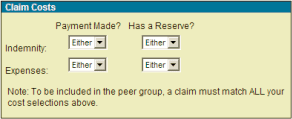
Fig.15,
“Claim Costs Menu.” Enhance your peer group to include
only claims that mach the criteria you specify. |
B. |
Status –
Select claims that are Open or Closed (or both). When
a malpractice claim is made, the plaintiff (or patient) takes
legal action against a healthcare provider. A Closed
claim would be one that has already been paid or dismissed. An
open claim is one that is still being disputed. |
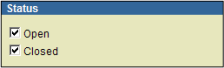
Fig. 16,
“Status Menu.” |
C. |
Claim Dates –
Here you can filter claims either by Accident Year or
Report Year. Keep in mind that the two are mutually
exclusive – only 1 can be selected. Next, pick up to 5 years
for your benchmark from the list below.
The Valuation Year is the year that the claim was first
reviewed by the policy maker. Again, select up to 5 years from
the list for your benchmark.
The years on these lists should include all Accident/Report
Years and all Valuation Years for which Advisen
has data in its database. |
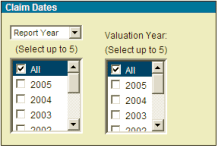
Fig. 17,
“Claims Dates Menu.” Select Accident /Report years
and Valuation years for your peer group. |
D. |
Departments –
You can further focus the results of your benchmark by comparing
specific medical departments.
For example, you could see how a hospital compares
to its peer group in terms of claims made against its Nursing
department.
You may select 1 of the following 7 departments:
| Emergency Department |
Medicine or Pharmacy |
| Nursing |
Obstetrics |
| Surgery – Inpatient |
Surgery – Outpatient |
Other
|
|
Alternatively, you may keep the default selection
(All) if individual departments are irrelevant to your
benchmark.
Also, you can select Other if the department
you desire is not listed. |

Fig.18,
“Departments Menu.” Compare specific medical departments
in your benchmark. |
E. |
Cause – Same as above but
with causes of the claim rather than medical departments. There
are 10 causes to choose from:
| Assault Issues |
Diagnostic Issues |
| Equipment Issues |
General Liability |
| Legal Issues |
Medication Issues |
| Obstetric Issues |
Patient Slip and Falls |
| Treatment Issues |
Other Issues |
Again, you may keep the default selection
(All) if individual causes are irrelevant to your benchmark,
or select Other Issues for an unlisted cause. |
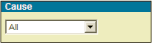
Fig.19,
“Cause Menu.” Compare specific claim causes in your
benchmark. |
F. |
Number of Claims Matching
All Criteria – This count reflects the number of
claims that meet all of your specified criteria and thus
will be used for your benchmark comparison. |

Fig. 20,
“Number of Claims Matching ALL Criteria Menu.” The
count at the bottom of the page tells you how many claims match
the combination of all your criteria. |
