|
Step 1. Company Peer Group:
In program benchmarking, you compare the financial aspects of a specific company's insurance program to programs for comparable
“peer” companies. The end result, in graphic format, lets you see how the program you're looking at stacks up against
this peer group, with respect to premiums, limits, and retentions. The first step to this process is identifying the kinds of
companies you want to include in your benchmark. Advisen offers you several different criteria for selecting companies.
|
|
|
A.
|
|
Company – Select the company you want to benchmark from the Company list. This will help Advisen
set likely default selections for your peer group. Or, if you are benchmarking a hypothetical, “What If?”
scenario, simply select none. If the company is not on your list it can be added through QuickView found on the left
side of the screen. To do this click on the Company tab, enter the company name, and select it from the search results.
|
|

Fig. 3, “Company Menu.” Select a company from the list, or just leave it at “None”
to benchmark a “What If” scenario. (More about this in the next topic, “Program Peer Group”.)
|
|
|
B.
|
|
Industries – You may restrict your peer group to include only companies in certain industries. Use the
Industries scroll menu to select industries. If you selected a company from your list, Advisen may have already
pre-selected the industry most likely to match your company. If so, you can still change to another industry or add others.
|
|
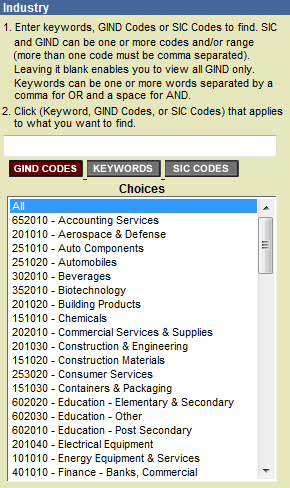
Fig. 4, “Industries Menu.” To make multiple selections from a list box, hold down the CTRL key
while you click on each selection
|
|
*Hint: If your initial selections of Industry do not give you enough programs to compare, try adding industries
with similar characteristics. The “Industry Overview” (from the Industry tab on the left side of the Advisen screen)
provides lists of similar industries.
|
|
|
|
C.
|
|
Company Type – Select the desired type of the company you want to benchmark. If you selected a company from
your list, Advisen may have already pre-selected the company type of the loaded company..
|
|
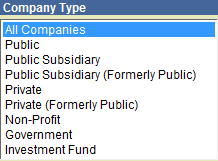
Fig. 5, “Company Type Menu.”
|
|
|
D.
|
|
Company Exposures – You may search for companies based on any one of these exposures criteria:
| Assets |
Deposits |
| Employees |
Market Cap |
| Net Worth |
Profits |
| Retirement Plan Assets |
Retirement Plan Participants |
| Revenues |
Surplus |
After selecting what financial measure to use, you may select value ranges. For example, if your chosen measurement
was Revenue, you might choose 0 to 100 Million and 100 Million to 500 Million as the ranges. Your peer group would include
only companies with annual revenues within those ranges.
|
|
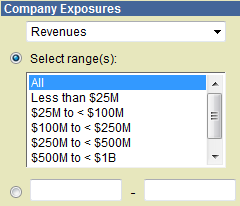
Fig. 6, “Financials Menu.” Pick a) What financial criteria to use, and b) what ranges to look for.
To define your own range, type the range start and end into the type-in boxes below the list. (You can select from the list or
type your own.)
|
|
*Hint: Don’t define your financial ranges too narrowly – the “Quartile Graphs” display
puts everything in “per $1,000 of revenue” or “per million $ of limits” terms, removing much of the effect
of using different sizes of companies.
|
|
|
|
E.
|
|
Location (Headquarters of Insured Company) – You have several options for selecting companies based on their
headquarters location. For the United States, you may include all states, or select individual states. You also have the option
of including or excluding Canadian companies and companies from other nations.
|
|
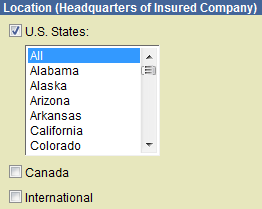
Fig. 7, “Location Menu.” Select companies based on the location of their headquarters office.
|
|
|
F.
|
|
Record Counts: How many Programs Match Your Peer Group? – When benchmarking, the size of the peer
group is very important. Generally, comparisons made against a larger number of samples have greater credibility
(“the law of large numbers”) than those made against a smaller number. With this in mind, you might
choose to relax some of your selection criteria, in the interest of enlarging your peer group.
The Selection, the Advisen and RIMS columns on the right side of the page help you see how your selections impact the
size of your peer group. You can see your selections and the number of programs matching them.
On the bottom of the page is a blue field labeled Number of Programs Matching ALL Criteria. This simply tells you the
number of programs that meet all of your specified criteria and thus will be used for your benchmark comparison.
*Hint: Counts are not updated automatically. When you make a change to your selection criteria, you must
hit the Update Count button to see revised counts.
|
|

Fig. 8, “Selection/Advisen Menu.” The left column shows your selection, and its corresponding
count appears to the right.

Fig. 9, “Number of Programs Matching ALL Criteria Menu.” The count at the bottom of the page tells
you how many programs match the combination of all your company peer group criteria.
|
|
|


